
Open Export at the top right of the editing area and choose an output type.
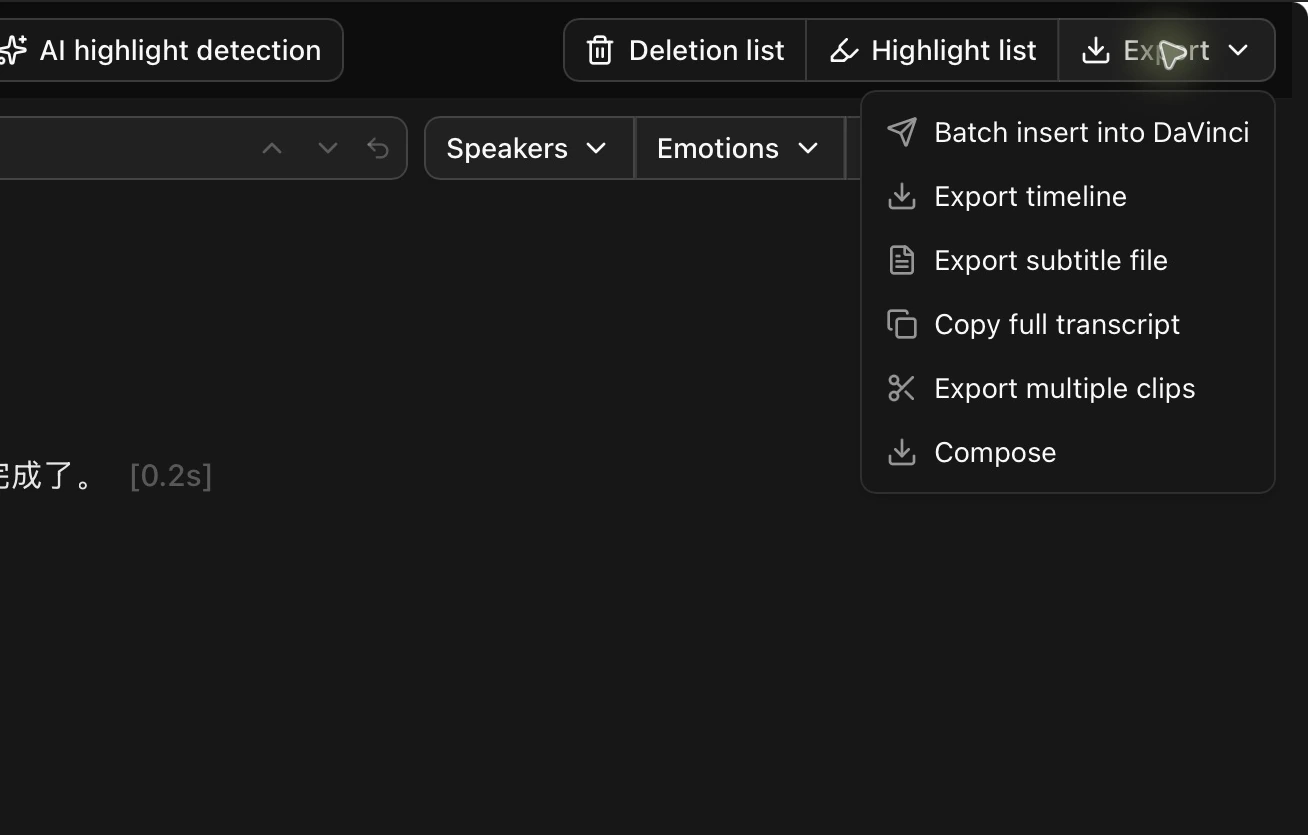
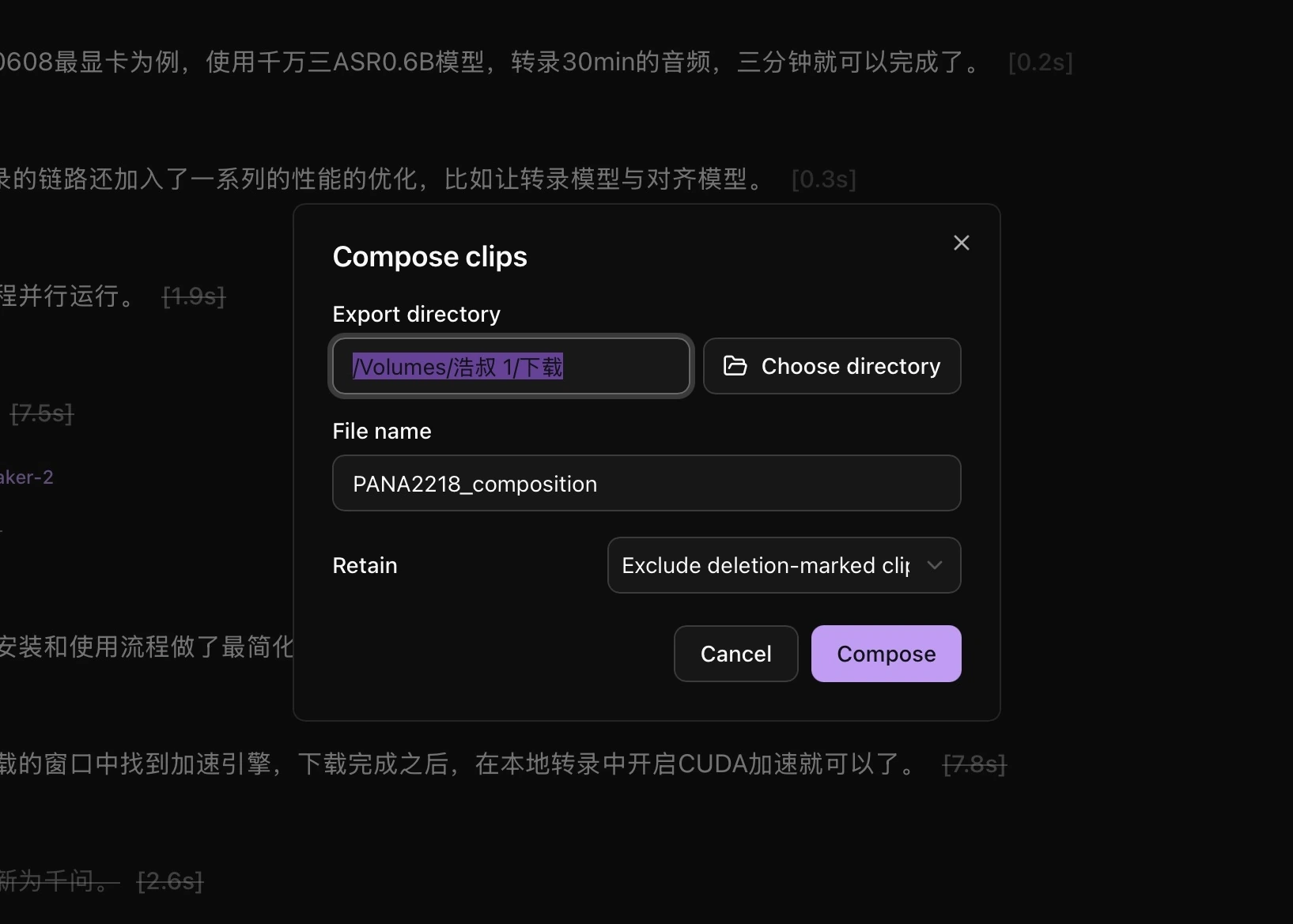
Export one finished video
- Choose Compose and set the folder and file name.
- For talking-head edits, retain Exclude deletion-marked clips. For a highlight compilation, retain Highlight clips.
- Click Compose and check Task queue for progress.
Export separate clips
Choose Export multiple clips, set the folder and keep condition, and start the export. Each matching clip is saved separately.
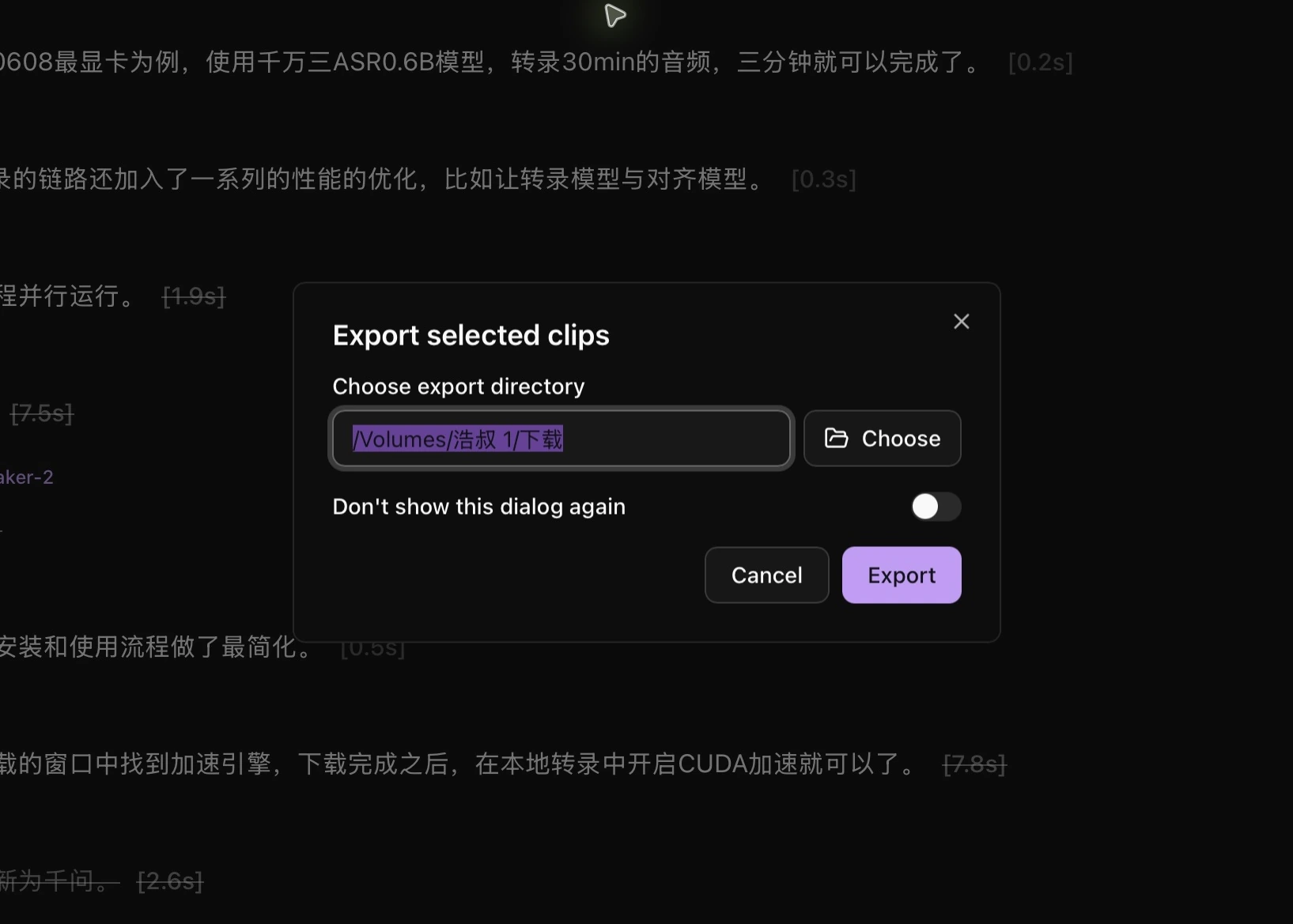
Export selected text as a clip
Select transcript text, click Export in the floating toolbar, choose a folder, and confirm the export.
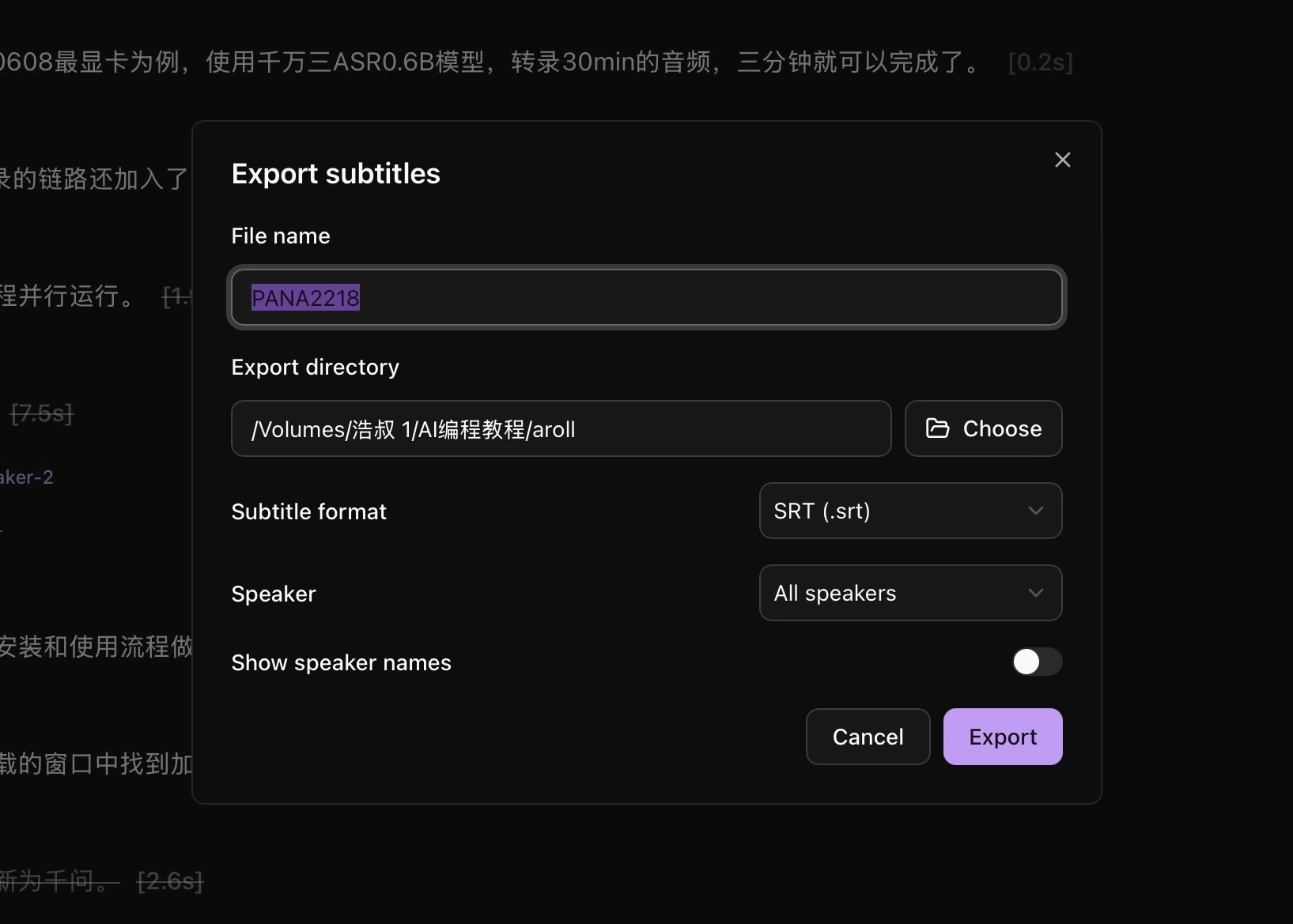
Export subtitles
Choose Export subtitle file, set the file name, folder, and format, then start the export. You can filter by speaker and enable speaker names in the output.
Export an editing timeline
Choose Export timeline, set the folder, file name, format, and clips to keep, then start the export. Import the resulting file into your editing application.
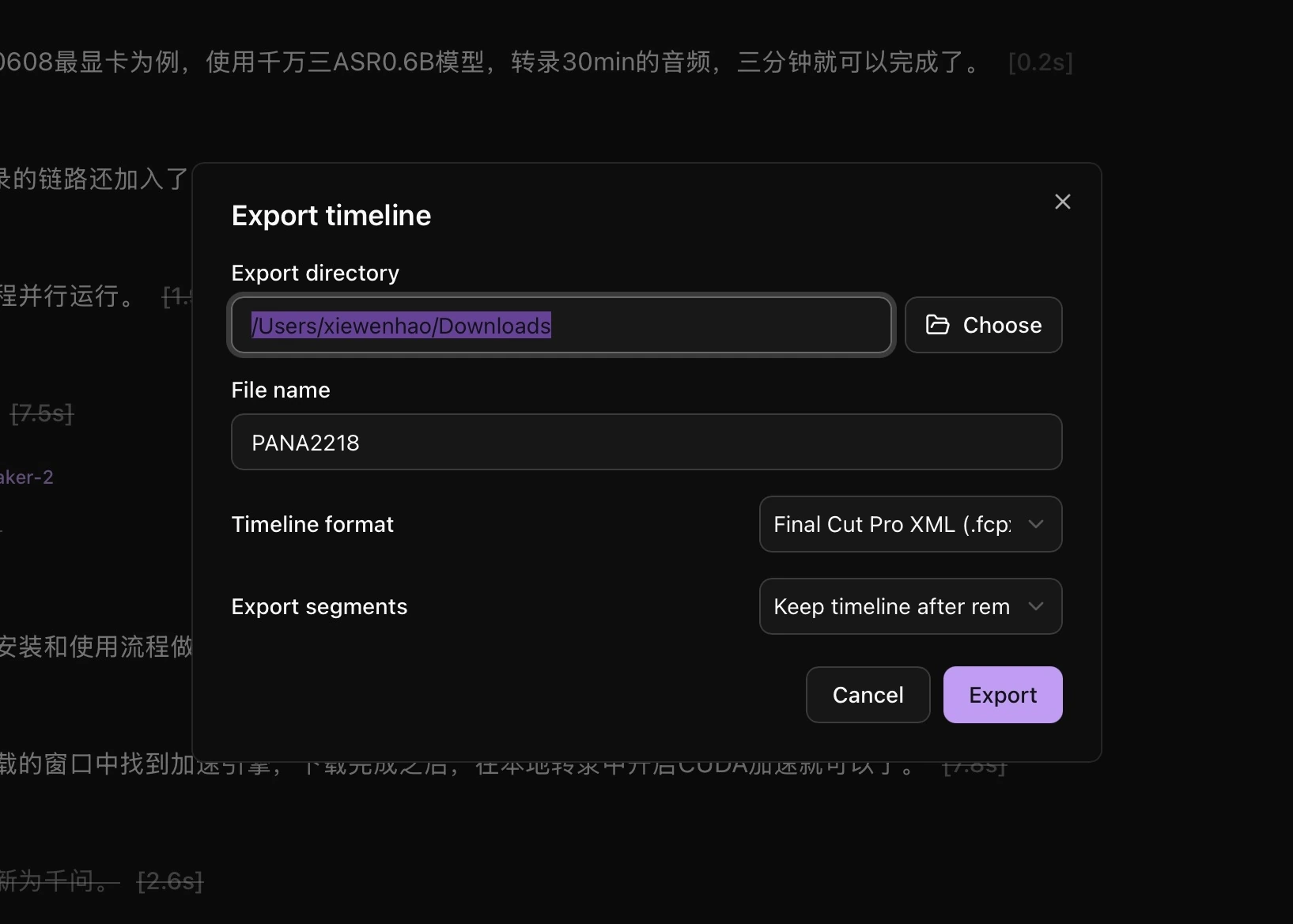
The timeline references your original media, so keep those files accessible. See the DaVinci plugin guide to send clips directly to Resolve.
Copy the transcript
Choose Export → Copy full transcript. For a smaller section, select text and use Copy in the floating toolbar.