
Find and navigate
Enter a keyword in Search transcript and use the arrows to move between matches. Click a paragraph timecode or the waveform to seek to that position.
Mark clips
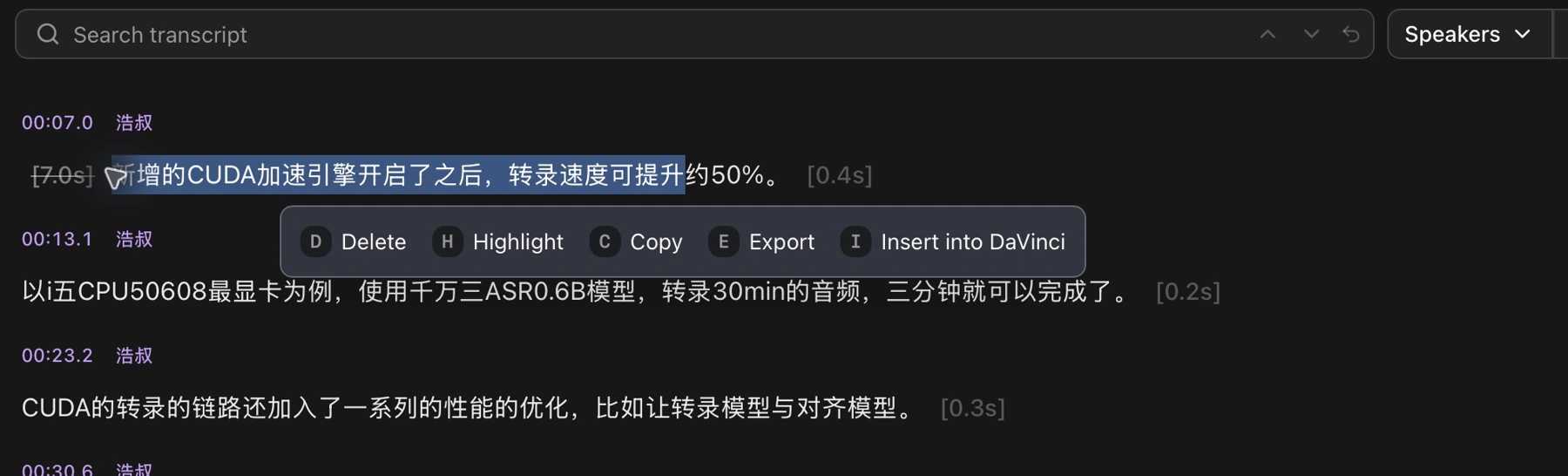
- Drag across text to show the floating toolbar.
- Click Delete to mark unwanted content, or Highlight to mark a clip you want to keep.
- You can also copy, export, or insert the selection into DaVinci Resolve.
Restore content
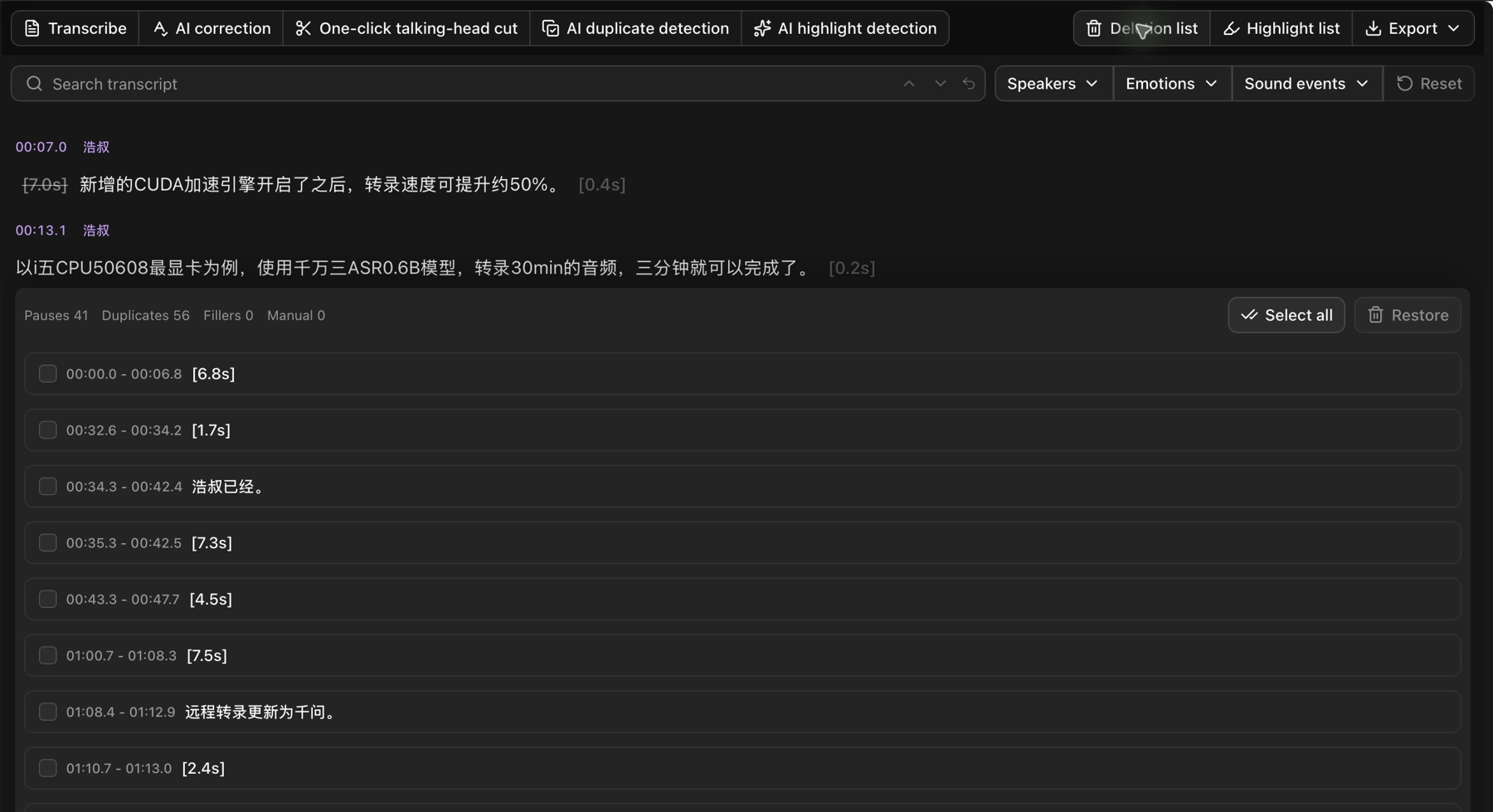
Open Deletion list, select clips you want to keep, and click Restore. Red waveform regions show deletion-marked ranges.
Whole-sentence actions
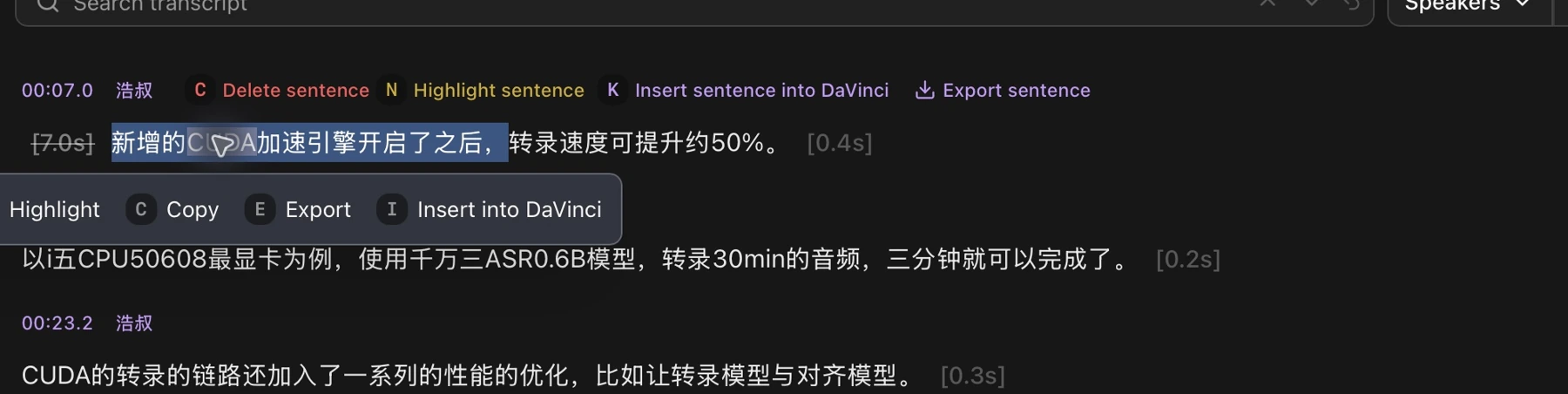
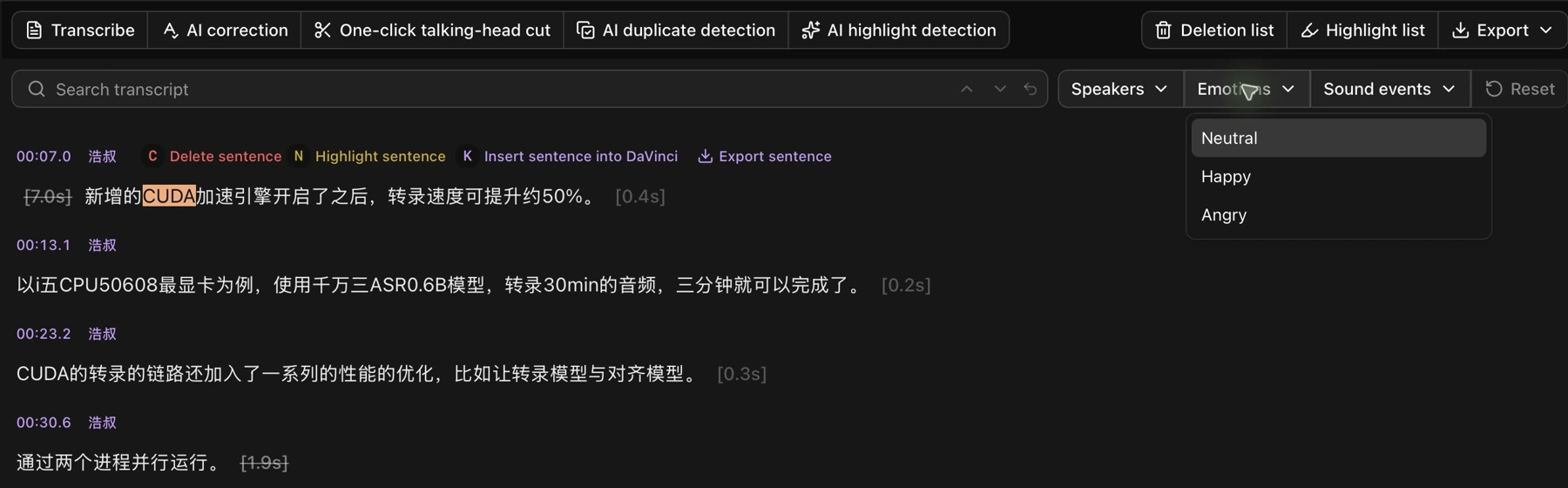
Double-click text to select a sentence. Use Delete sentence, Highlight sentence, Insert sentence into DaVinci, or Export sentence beside it.
Filter the transcript
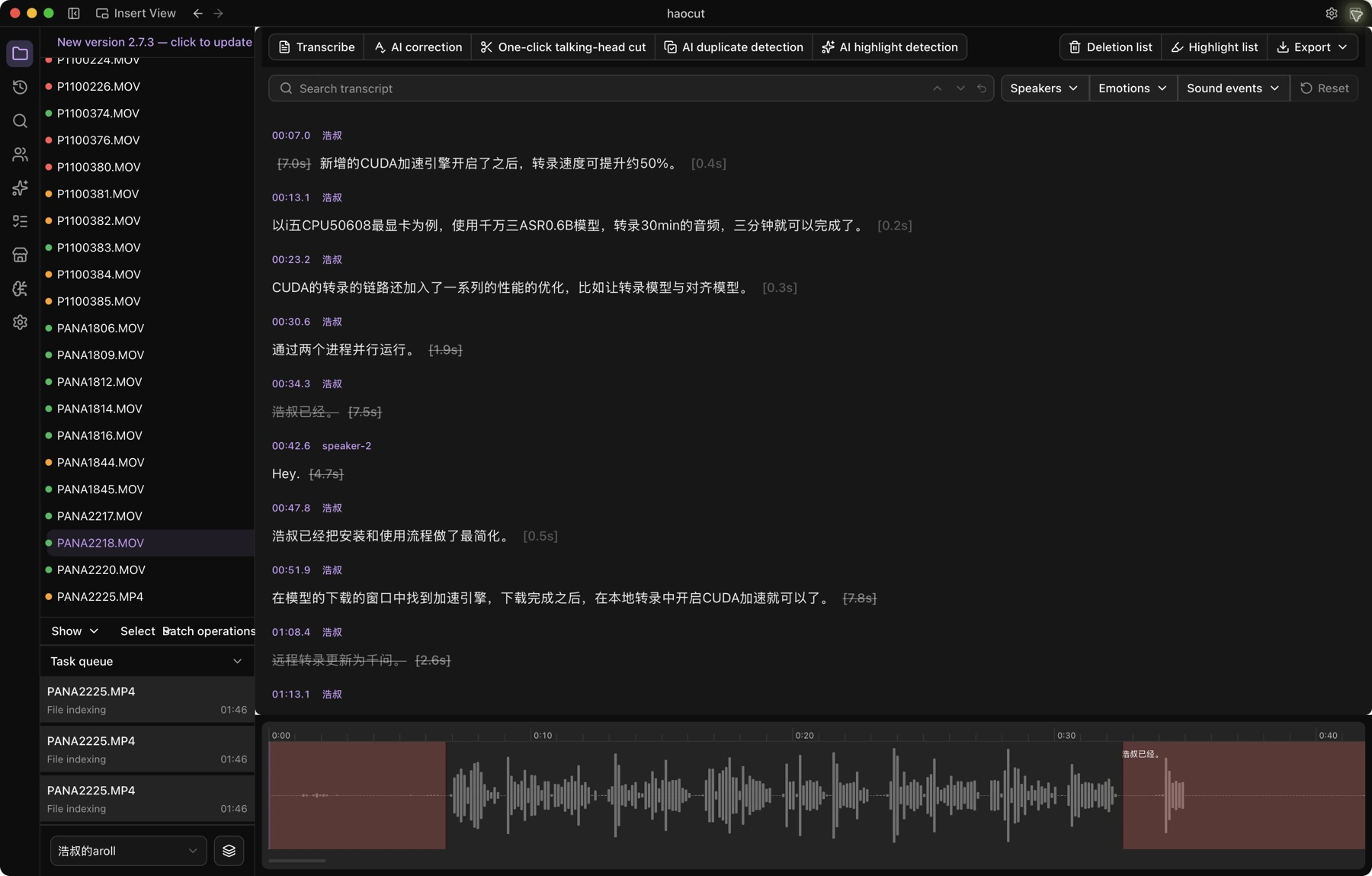
Choose speakers, emotions, or sound events above the transcript to narrow the view. Click Reset to clear filters. Emotion and audio-event filters require those recognition options during transcription.
Undo marks
Click the undo button beside transcript search after an accidental edit. You can also restore deleted content from Deletion list.